Download & Install Movie HD FireStick (Latest APK v5.5.0 – 2026 Guide)
Movie HD is a simple app used to watch movies and TV shows in HD quality on FireStick. This guide shows how to install it, set it up, and use it the right way. It is written for FireStick users who want fast steps, clear info, and no confusion. Everything here focuses on watching, streaming, and smooth use on Fire TV devices.
What Is Movie HD App & Why FireStick Users Choose It
Movie HD is a streaming app that lets you watch movies and TV shows in HD on your device. It pulls links from different sources and plays them through an external video player. The app is lightweight, loads fast, and is easy to use, even for new users.
It works well on Amazon FireStick because it runs smoothly on Fire OS. The interface fits TV screens, navigation is simple with a remote, and it does not need heavy storage. With the right player and settings, playback stays stable and clear.
Movie HD firestick is best for users who want HD movies, full TV series, and subtitle support on FireStick. It suits people who stream often, prefer simple layouts, and want quick access without extra steps. It also works well for users who connect Real Debrid or track shows with Trakt TV.
Key Features of Movie HD App
Download Movie HD For PC or iOS.
What You Need Before Installing Movie HD FireStick
Make sure your device and settings are ready before you start. This helps avoid errors during setup.
Supported FireStick & Fire TV Devices
Required Apps & Settings
Once these are in place, the installation process takes only a few minutes.
Step-by-Step Guide to Install Movie HD on Amazon FireStick
Follow these steps in order. Each step is short and required.
Step 1 – Enable Apps from Unknown Sources on FireStick
This allows Movie hd FireStick to install apps not listed on the Amazon Store.
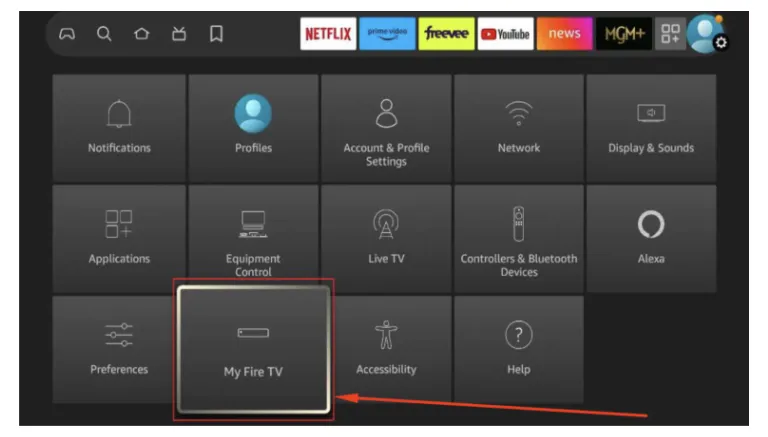
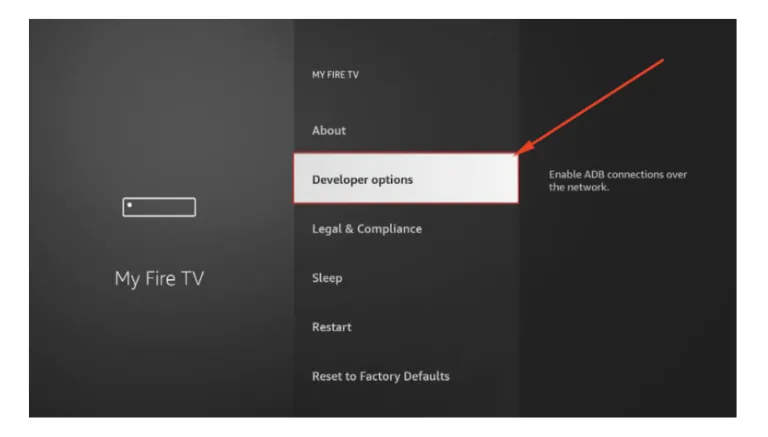
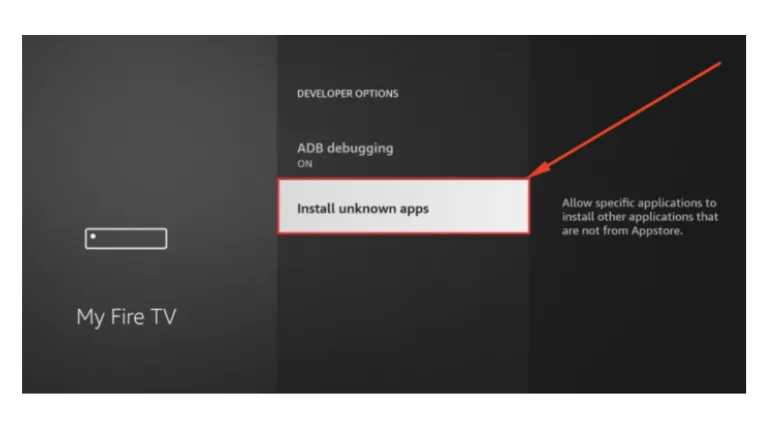
If Developer Options is hidden, go to About, select your Fire TV device name, and press the select button seven times.
Step 2 – Install Downloader App on FireStick
A downloader is needed to download and install the APK file.
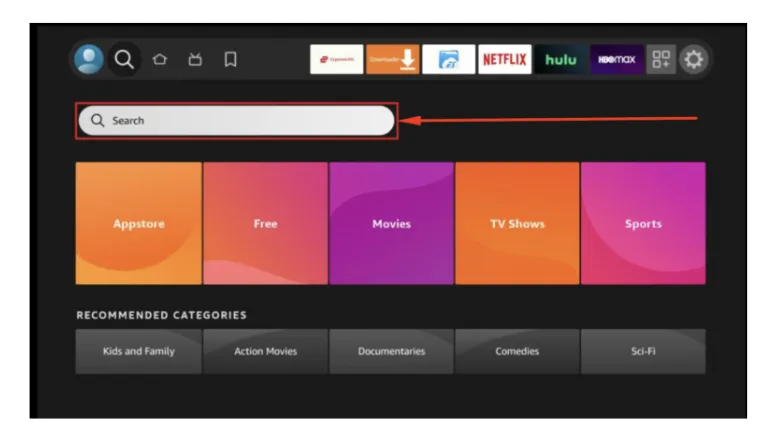
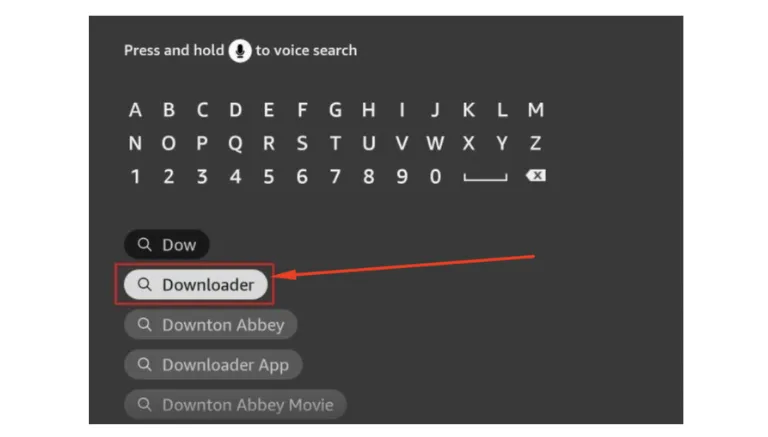
When you open Downloader for the first time:
Once the downloader is ready, you can move to the installation step.
Step 3 – Download & Install Movie HD APK on FireStick
This step installs the Movie HD app on your FireStick.
Once prompted, choose Delete to remove the APK file. This frees up storage and keeps your FireStick running smoothly. You can now find Movie HD under Your Apps & Channels.
Install Best External Video Player for Movie HD
Movie HD does not play videos on its own. It needs an external player for smooth playback.
Why Movie HD Needs an External Player
Using the right player makes a clear difference on FireStick.
How to Install AMPlayer on FireStick
AMPlayer works well with Movie HD and is easy to set up.
Once set, videos will open automatically in AMPlayer.
How to Use Movie HD on FireStick (Beginner Guide)
Using Movie HD is simple once it is installed.
After setup, you can watch content with just a few clicks.
Improve Streaming Quality with Real Debrid & Trakt TV
These services improve links, tracking, and overall experience on FireStick.
How to Set Up Real Debrid on Movie HD
Real Debrid provides premium streaming links with better quality.
After login, Movie HD shows more HD links with less buffering.
How to Connect Trakt TV with Movie HD
Trakt TV helps track what you watch.
Once connected, your watched movies and episodes stay synced across devices.
Common Problems & Fixes
If Movie HD firestick does not work as expected, these fixes solve most issues on FireStick.
1. Movie HD Not Installing on FireStick
2. App Not Opening or Crashing
3. No Links Available
4. Buffering Issues
5. Subtitles Not Working
Most issues are temporary and get fixed with these steps.
Is Movie HD Safe & Legal to Use on FireStick?
This section explains safety and legal concerns in a clear, neutral way.
Is Movie HD Safe?
Movie HD firestick is an APK file, not an app from the Amazon Appstore. Safety depends on where the file comes from and how it is used.
Many users choose to use a VPN to protect privacy. A VPN hides IP traffic and helps avoid tracking on public or shared networks. It does not change how the app works.
Is Movie HD Legal?
Movie HD itself is an app. It does not host content. It pulls links from public sources.
Streaming laws vary by country. Some links may point to copyrighted content. Users are responsible for how they access and view content on their devices.
This guide is for educational purposes only. Always follow local laws and streaming rules in your region.
Best Alternatives to Movie HD FireStick
If Movie HD does not meet your needs, these apps offer similar features on FireStick.
Each option works in a similar way and supports external video players on FireStick.
Conclusion
Movie HD firestick is best for FireStick users who want a simple way to stream movies and TV shows in HD. It suits people who prefer quick access, basic controls, and support for external players and subtitles.
It works best on updated Fire TV devices with a stable internet connection. Adding an external player and Real Debrid improves playback and reduces buffering.
If you want a lightweight app with a large library and easy setup, Movie HD is a solid choice for FireStick in 2026.